feature-flag-launchdarkly example
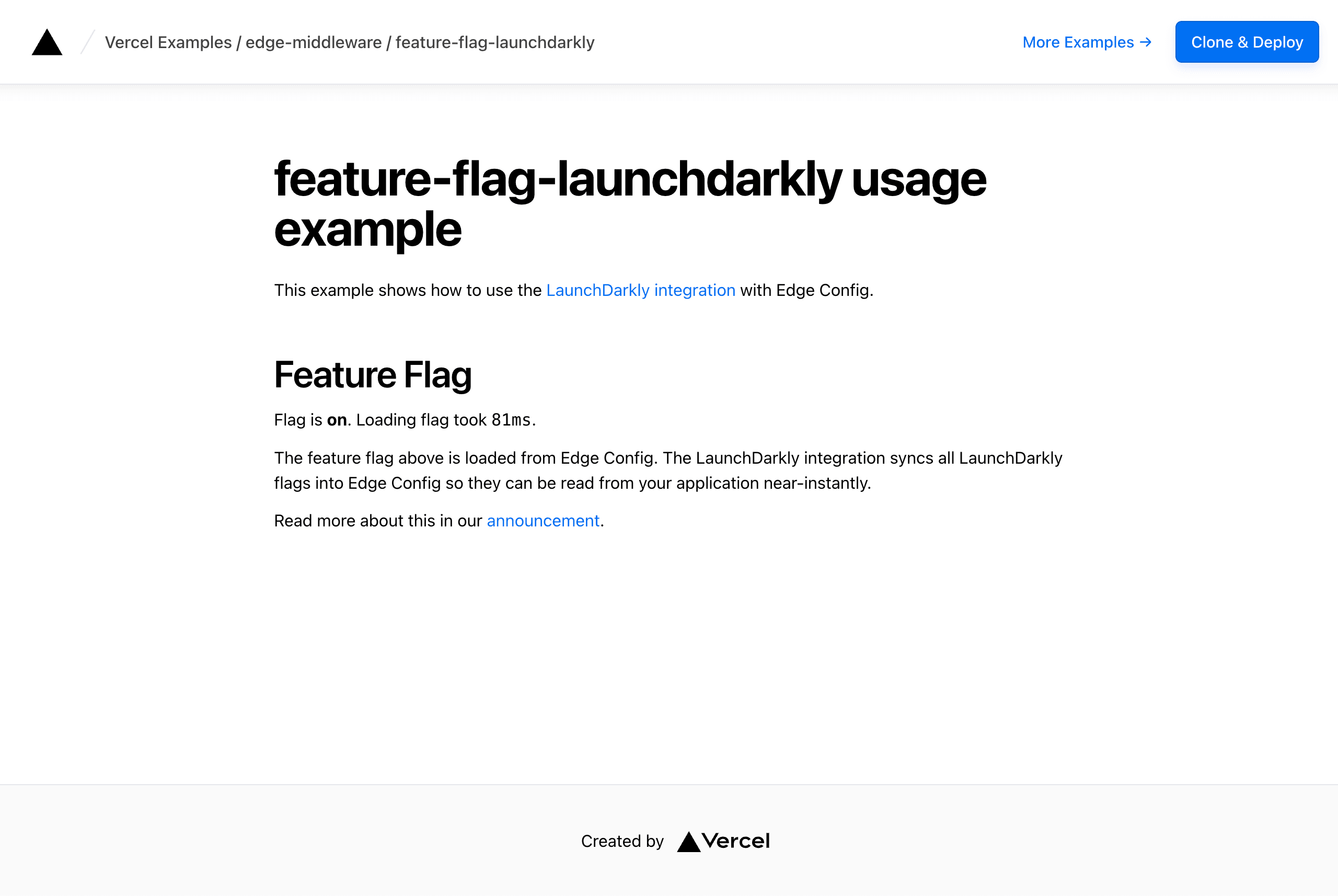
This example shows how to use the native LaunchDarkly integration from the Vercel Marketplace with Next.js.
The integration provides the NEXT_PUBLIC_LAUNCHDARKLY_CLIENT_SIDE_ID environment variable, which contains your client-side ID from LaunchDarkly.
LaunchDarkly syncs your feature flags into an Edge Config. When installing the LaunchDarkly integration from the Vercel Marketplace, turn on the Enable Edge Config Syncing toggle in the "Configuration and Plan" step of the install process. This provisions an Edge Config and exposes its connection string as the EXPERIMENTATION_CONFIG environment variable, which this example reads to create the Edge Config client.
Set up the feature flag
Head over to the LaunchDarkly Console and create the feature flag used by this example, in the same project and environment your client-side ID belongs to:
My Flag(type boolean) with the keymy-flagand the variationstrueandfalse
Turn the flag ON. Toggling targeting on and off changes what the page shows, confirming flags are being read from Edge Config.
The example evaluates the flag against a context of kind org with the key my-org-key (see app/page.tsx). Contexts do not need to be created in LaunchDarkly ahead of time — they are simply sent by the app at evaluation time. The default targeting rule works without any extra setup. If you want to add targeting rules, target the org context kind rather than user.
Demo
https://feature-flag-launchdarkly.vercel.app
How to Use
You can choose from one of the following two methods to use this repository:
One-Click Deploy
Deploy the example using Vercel:
Clone and Deploy
Execute create-next-app with pnpm to bootstrap the example:
Next, run Next.js in development mode:
Deploy it to the cloud with Vercel (Documentation).